http://zooprexmedia.web.id/cara-mudah-setting-cronjob-di-vps/
* * * * * wget -q -O /dev/null “http://www.domain.com/grab-image.php” > /dev/null 2>&1 (setingan permenit)
Showing posts with label time. Show all posts
Showing posts with label time. Show all posts
Monday, November 16, 2015
Monday, November 2, 2015
How to sync a javascript with server time
https://github.com/delphiprogramming/ServerDate
http://stackoverflow.com/questions/5357719/how-to-sync-a-javascript-countdown-with-server-time?lq=1
http://stackoverflow.com/questions/10585910/sync-js-time-between-multiple-devices
http://stackoverflow.com/questions/1638337/the-best-way-to-synchronize-client-side-javascript-clock-with-server-date
http://stackoverflow.com/questions/8478179/synchronize-time-in-javascript-with-a-good-precision-0-5s-ntp-like
http://stackoverflow.com/questions/5357719/how-to-sync-a-javascript-countdown-with-server-time?lq=1
http://stackoverflow.com/questions/10585910/sync-js-time-between-multiple-devices
http://stackoverflow.com/questions/1638337/the-best-way-to-synchronize-client-side-javascript-clock-with-server-date
http://stackoverflow.com/questions/8478179/synchronize-time-in-javascript-with-a-good-precision-0-5s-ntp-like

hostgator, digitalocean.com,hawkhost.com Tracert
C:\Users\U S E R>tracert hostgator.com
Tracing route to hostgator.com [50.23.69.98]
over a maximum of 30 hops:
1 <1 ms <1 ms <1 ms 1.1.168.192.in-addr.arpa [192.168.1.1]
2 40 ms 42 ms 71 ms 36.85.0.1
3 41 ms 41 ms 56 ms 169.0.252.180.in-addr.arpa [180.252.0.169]
4 48 ms 39 ms 40 ms 61.94.114.125
5 73 ms 71 ms 71 ms 110.190.240.180.in-addr.arpa [180.240.190.110]
6 62 ms 63 ms 63 ms 109.190.240.180.in-addr.arpa [180.240.190.109]
7 97 ms 96 ms 96 ms 114.190.240.180.in-addr.arpa [180.240.190.114]
8 100 ms 100 ms 96 ms 36351.hkg.equinix.com [119.27.63.40]
9 114 ms 113 ms 108 ms ae7.bbr01.pn01.hkg01.networklayer.com [50.97.18.
174]
10 145 ms 147 ms 144 ms ae0.bbr02.eq01.tok01.networklayer.com [50.97.18.
166]
11 156 ms 159 ms 146 ms ae7.bbr01.eq01.tok01.networklayer.com [50.97.18.
162]
12 254 ms 257 ms 255 ms ae2.bbr02.eq01.sjc02.networklayer.com [50.97.18.
160]
13 250 ms 251 ms 253 ms ae5.dar02.sjc01.networklayer.com [173.192.18.251
]
14 248 ms 253 ms 249 ms po2.fcr01.sr01.sjc01.networklayer.com [50.23.118
.133]
15 256 ms 258 ms 263 ms 62.45.1732.ip4.static.sl-reverse.com [50.23.69.9
8]
Trace complete.
C:\Users\U S E R>tracert digitalocean.com
Tracing route to digitalocean.com [104.16.79.125]
over a maximum of 30 hops:
1 5 ms 9 ms <1 ms 1.1.168.192.in-addr.arpa [192.168.1.1]
2 46 ms 41 ms 49 ms 36.85.0.1
3 47 ms 55 ms 59 ms 169.0.252.180.in-addr.arpa [180.252.0.169]
4 156 ms * * 61.94.114.125
5 71 ms 157 ms 87 ms 110.190.240.180.in-addr.arpa [180.240.190.110]
6 * 77 ms 94 ms 109.190.240.180.in-addr.arpa [180.240.190.109]
7 80 ms 131 ms 88 ms 22.204.240.180.in-addr.arpa [180.240.204.22]
8 93 ms 113 ms 63 ms 22.204.240.180.in-addr.arpa [180.240.204.22]
9 144 ms 163 ms 94 ms 103.31.4.253
10 70 ms 70 ms 68 ms 125.79.16.104.in-addr.arpa [104.16.79.125]
Trace complete.
C:\Users\U S E R>tracert taxxxx.net
Tracing route to tajwid.net [198.252.101.219]
over a maximum of 30 hops:
1 7 ms 128 ms 56 ms 1.1.168.192.in-addr.arpa [192.168.1.1]
2 80 ms 62 ms 73 ms 36.85.0.1
3 147 ms 74 ms 209 ms 169.0.252.180.in-addr.arpa [180.252.0.169]
4 45 ms 47 ms 50 ms 61.94.114.125
5 67 ms 99 ms 86 ms 110.190.240.180.in-addr.arpa [180.240.190.110]
6 69 ms 107 ms 121 ms 109.190.240.180.in-addr.arpa [180.240.190.109]
7 64 ms 122 ms 106 ms 197.190.240.180.in-addr.arpa [180.240.190.197]
8 180 ms 65 ms 68 ms 36351.sgw.equinix.com [202.79.197.69]
9 121 ms 78 ms 64 ms ae5.dar01.sr03.sng01.networklayer.com [50.97.18.
197]
10 71 ms 65 ms * po1.fcr01.sr03.sng01.networklayer.com [174.133.1
18.131]
11 157 ms 104 ms 96 ms 198.252.101.219-static.reverse.arandomserver.com
[198.252.101.219]
Trace complete.
Tracing route to hostgator.com [50.23.69.98]
over a maximum of 30 hops:
1 <1 ms <1 ms <1 ms 1.1.168.192.in-addr.arpa [192.168.1.1]
2 40 ms 42 ms 71 ms 36.85.0.1
3 41 ms 41 ms 56 ms 169.0.252.180.in-addr.arpa [180.252.0.169]
4 48 ms 39 ms 40 ms 61.94.114.125
5 73 ms 71 ms 71 ms 110.190.240.180.in-addr.arpa [180.240.190.110]
6 62 ms 63 ms 63 ms 109.190.240.180.in-addr.arpa [180.240.190.109]
7 97 ms 96 ms 96 ms 114.190.240.180.in-addr.arpa [180.240.190.114]
8 100 ms 100 ms 96 ms 36351.hkg.equinix.com [119.27.63.40]
9 114 ms 113 ms 108 ms ae7.bbr01.pn01.hkg01.networklayer.com [50.97.18.
174]
10 145 ms 147 ms 144 ms ae0.bbr02.eq01.tok01.networklayer.com [50.97.18.
166]
11 156 ms 159 ms 146 ms ae7.bbr01.eq01.tok01.networklayer.com [50.97.18.
162]
12 254 ms 257 ms 255 ms ae2.bbr02.eq01.sjc02.networklayer.com [50.97.18.
160]
13 250 ms 251 ms 253 ms ae5.dar02.sjc01.networklayer.com [173.192.18.251
]
14 248 ms 253 ms 249 ms po2.fcr01.sr01.sjc01.networklayer.com [50.23.118
.133]
15 256 ms 258 ms 263 ms 62.45.1732.ip4.static.sl-reverse.com [50.23.69.9
8]
Trace complete.
C:\Users\U S E R>tracert digitalocean.com
Tracing route to digitalocean.com [104.16.79.125]
over a maximum of 30 hops:
1 5 ms 9 ms <1 ms 1.1.168.192.in-addr.arpa [192.168.1.1]
2 46 ms 41 ms 49 ms 36.85.0.1
3 47 ms 55 ms 59 ms 169.0.252.180.in-addr.arpa [180.252.0.169]
4 156 ms * * 61.94.114.125
5 71 ms 157 ms 87 ms 110.190.240.180.in-addr.arpa [180.240.190.110]
6 * 77 ms 94 ms 109.190.240.180.in-addr.arpa [180.240.190.109]
7 80 ms 131 ms 88 ms 22.204.240.180.in-addr.arpa [180.240.204.22]
8 93 ms 113 ms 63 ms 22.204.240.180.in-addr.arpa [180.240.204.22]
9 144 ms 163 ms 94 ms 103.31.4.253
10 70 ms 70 ms 68 ms 125.79.16.104.in-addr.arpa [104.16.79.125]
Trace complete.
C:\Users\U S E R>tracert taxxxx.net
Tracing route to tajwid.net [198.252.101.219]
over a maximum of 30 hops:
1 7 ms 128 ms 56 ms 1.1.168.192.in-addr.arpa [192.168.1.1]
2 80 ms 62 ms 73 ms 36.85.0.1
3 147 ms 74 ms 209 ms 169.0.252.180.in-addr.arpa [180.252.0.169]
4 45 ms 47 ms 50 ms 61.94.114.125
5 67 ms 99 ms 86 ms 110.190.240.180.in-addr.arpa [180.240.190.110]
6 69 ms 107 ms 121 ms 109.190.240.180.in-addr.arpa [180.240.190.109]
7 64 ms 122 ms 106 ms 197.190.240.180.in-addr.arpa [180.240.190.197]
8 180 ms 65 ms 68 ms 36351.sgw.equinix.com [202.79.197.69]
9 121 ms 78 ms 64 ms ae5.dar01.sr03.sng01.networklayer.com [50.97.18.
197]
10 71 ms 65 ms * po1.fcr01.sr03.sng01.networklayer.com [174.133.1
18.131]
11 157 ms 104 ms 96 ms 198.252.101.219-static.reverse.arandomserver.com
[198.252.101.219]
Trace complete.
Thursday, October 22, 2015
Wednesday, October 7, 2015
Create a web browser in 3 minutes using Chromium engine! (fpCEF3)
http://lazplanet.blogspot.co.id/2015/09/create-web-browser-in-3-minutes-using.html
 We'll learn how to create a web browser even quicker than you can install one! All using the people's favorite chromium engine!
Well, we had a popular post on LazPlanet aboutcreating a web browser using the GeckoPort v1. That was a great way to create a browser and I love Gecko because it is the darling of open source! But it was an old version of Gecko and the newer version does not seem to work.
So, today, we have a solution for a browser made with a more updated engine. It will harness the pure goodness of the Chromium Embedded Framework (CEF) and its implementation on Free Pascal, named fpCEF3.
Although Chrome has done things that truly-privacy-minded people don't like. But it is a fast web browser engine that is increasingly becoming popular. We all know thatOpera ditched its own-coded engine "Presto" and started using "Blink", a variant of the Chromium engine, as their focused engine. Google Chrome also has a good bite in browser market share. Chrome is also running in the Chromebooks pioneered by Google. So, we can say that Chromium has done something right and we're going to learn to build a browser out of that goodness.
FpCEF3 is a great project that we should all adore. It will let us use the Chromium engine right in our Lazarus project. And it is possible to use it in Windows, Linux and Mac OS platforms. But in this article, we are using Windows. (You can adopt this tutorial for the other platforms quite easily if you know your way around.)
So without further ado, let's make this browser...
[
But if you are ready to experiment any later revisions, feel free to do so. (I have instructions for it later, don't worry.) For getting the latest revision, you can useWin32SVN and summon the commands in terminal:
(You can always change the c:\lazarus part with your Lazarus installation if you have lazarus installed elsewhere in your computer. If you've done this, then skip the next step, step 2, and continue after that.)
]
2. Extract & Copy the folder to the Components directory inside your Lazarus installation (this is usually C:\Lazarus\Componenets).

3. Now go inside the folder, then inside "Component" folder, then double clickcef3.lpk. (You can also use Package->Open Package file (lpk)... from inside Lazarus to open this file.)
This will open up Lazarus with a "Package" window for CEF3 like below:

4. Click on Compile.
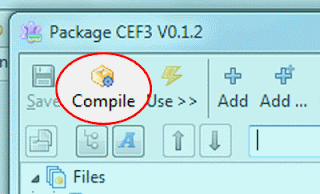
5. After the Compiling has completed (the messages window will show a "Success" message), click Use -> Install. Click Yes to rebuild Lazarus.

Give it some time to rebuild. Lazarus will restart. Upon restart you'll now see a new "Chromium" tab in the toolbar.

In the meanwhile let's download CEF...
1. Download CEF (version 3.1750) from here or here .
2. Download & Install 7-zip from here. You'll need 7-zip to extract the file above.
3. Now extract the file and keep it that way. We'll only need the "Release" & "Resources" folders from this hotchpotch and jam packed file.
Start Lazarus.
Create a new Application project (Project->New Project->Application->OK).
Save the Project (File -> Save All) in a directory.
Now, in the project directory copy the Resources Folder from CEF package.
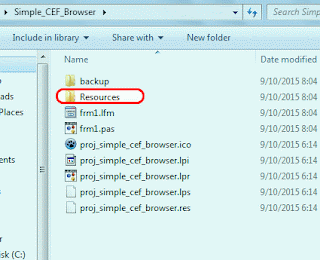
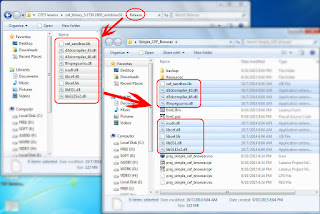
And then copy all the files inside the Release folder from CEF package, and paste it directly into the project directory. See the screenshot below if you need help understanding (click to enlarge).
Drop a new TEditButton (from Misc tab) in to the form. Set its properties like this:
Name = edtURL
Align = alTop
ButtonCaption = Go
The result is as follows:
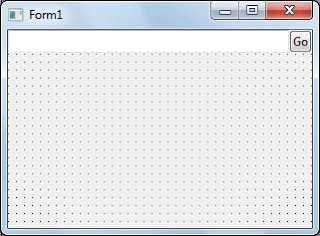
Now we'll have a nice Location bar/Address bar at the top.
Now Drop a new TChromium (from Chromium tab) in the form. Set its properties:
Name = Chromium
Align = alClient
It will fit the Chromium component nicely in the form's blank area.

Now double click the Form1 item in the Object Inspector and enter the code:
Now that you are in the Code view, add the cef3types & cef3lib unit in the uses clause:
Now add the following code on edtURL's OnButtonClick event (select the edtURL component, go to Event tab, click the [...] button beside OnButtonClick item):
Now add the following code on Chromium's OnLoadEnd event (select the Chromium component, go to Event tab, click the [...] button beside OnLoadEnd item):
Voila! Done! Well under 3 minutes!
Now Run the project (F9 or Run -> Run). Click the "Go" button.

You'll see the LazPlanet website load in your newly made web browser! You can change the code on the TForm1.FormCreate procedure to set another URL as the homepage.
Now browse all you want with your new browser! Happy surfing!
Size: 926 KB
The package contains compiled executable EXE file.
Ref:
http://wiki.freepascal.org/fpCEF3
https://github.com/dliw/fpCEF3
http://www.magpcss.net/cef_downloads/
Well, we had a popular post on LazPlanet aboutcreating a web browser using the GeckoPort v1. That was a great way to create a browser and I love Gecko because it is the darling of open source! But it was an old version of Gecko and the newer version does not seem to work.
So, today, we have a solution for a browser made with a more updated engine. It will harness the pure goodness of the Chromium Embedded Framework (CEF) and its implementation on Free Pascal, named fpCEF3.
Although Chrome has done things that truly-privacy-minded people don't like. But it is a fast web browser engine that is increasingly becoming popular. We all know thatOpera ditched its own-coded engine "Presto" and started using "Blink", a variant of the Chromium engine, as their focused engine. Google Chrome also has a good bite in browser market share. Chrome is also running in the Chromebooks pioneered by Google. So, we can say that Chromium has done something right and we're going to learn to build a browser out of that goodness.
FpCEF3 is a great project that we should all adore. It will let us use the Chromium engine right in our Lazarus project. And it is possible to use it in Windows, Linux and Mac OS platforms. But in this article, we are using Windows. (You can adopt this tutorial for the other platforms quite easily if you know your way around.)
So without further ado, let's make this browser...
Download & Install fpCEF3
1. First of all, we need to download fpCEF3. You can download revision 23 (or version 3.1750) from here . (I have used the revision no 23 which is very important for the next step. I'll explain later.)[
But if you are ready to experiment any later revisions, feel free to do so. (I have instructions for it later, don't worry.) For getting the latest revision, you can useWin32SVN and summon the commands in terminal:
cd /D c:\lazarus\components
svn co https://github.com/dliw/fpCEF3
(You can always change the c:\lazarus part with your Lazarus installation if you have lazarus installed elsewhere in your computer. If you've done this, then skip the next step, step 2, and continue after that.)
]
2. Extract & Copy the folder to the Components directory inside your Lazarus installation (this is usually C:\Lazarus\Componenets).

3. Now go inside the folder, then inside "Component" folder, then double clickcef3.lpk. (You can also use Package->Open Package file (lpk)... from inside Lazarus to open this file.)
This will open up Lazarus with a "Package" window for CEF3 like below:

4. Click on Compile.

5. After the Compiling has completed (the messages window will show a "Success" message), click Use -> Install. Click Yes to rebuild Lazarus.

Give it some time to rebuild. Lazarus will restart. Upon restart you'll now see a new "Chromium" tab in the toolbar.

In the meanwhile let's download CEF...
Download CEF
[ Note: I was very specific about getting the 23 revision (or version 3.1750) of FPCEF3. This version is able to use CEF version 3.1750. If you have got yourself any other revision of fpCEF3, be sure to check the version number or commit messages to look for the appropriate version of CEF to be downloaded for it to work. ]1. Download CEF (version 3.1750) from here or here .
2. Download & Install 7-zip from here. You'll need 7-zip to extract the file above.
3. Now extract the file and keep it that way. We'll only need the "Release" & "Resources" folders from this hotchpotch and jam packed file.
Create the browser in 3 minutes!
The previous steps were just preparations -- which you'll only have to do once. Now that we're done with those boring setups now we get back in our real business... the browser.Start Lazarus.
Create a new Application project (Project->New Project->Application->OK).
Save the Project (File -> Save All) in a directory.
Now, in the project directory copy the Resources Folder from CEF package.

And then copy all the files inside the Release folder from CEF package, and paste it directly into the project directory. See the screenshot below if you need help understanding (click to enlarge).

Drop a new TEditButton (from Misc tab) in to the form. Set its properties like this:
Name = edtURL
Align = alTop
ButtonCaption = Go
The result is as follows:

Now we'll have a nice Location bar/Address bar at the top.
Now Drop a new TChromium (from Chromium tab) in the form. Set its properties:
Name = Chromium
Align = alClient
It will fit the Chromium component nicely in the form's blank area.

Now double click the Form1 item in the Object Inspector and enter the code:
1
2
3
4
5
6
7
| procedure TForm1.FormCreate(Sender: TObject);begin CefResourcesDirPath:='Resources'; CefLocalesDirPath:='Resources\locales'; CefInitDefault;end; |
Now that you are in the Code view, add the cef3types & cef3lib unit in the uses clause:
1
2
3
| uses ..., ..., ... , cef3types, cef3lib; |
Now add the following code on edtURL's OnButtonClick event (select the edtURL component, go to Event tab, click the [...] button beside OnButtonClick item):
1
2
3
4
5
6
| procedure TForm1.edtURLButtonClick(Sender: TObject);begin Chromium.Load(UTF8Decode(edtURL.Text));end; |
Now add the following code on Chromium's OnLoadEnd event (select the Chromium component, go to Event tab, click the [...] button beside OnLoadEnd item):
1
2
3
4
5
6
7
| procedure TForm1.ChromiumLoadEnd(Sender: TObject; const Browser: ICefBrowser; const Frame: ICefFrame; httpStatusCode: Integer);begin edtURL.Text:=UTF8Encode(Browser.MainFrame.Url);end; |
Voila! Done! Well under 3 minutes!
Now Run the project (F9 or Run -> Run). Click the "Go" button.

You'll see the LazPlanet website load in your newly made web browser! You can change the code on the TForm1.FormCreate procedure to set another URL as the homepage.
Now browse all you want with your new browser! Happy surfing!
Download Sample Code ZIP
You can download the above example tutorial project's source code from here.Size: 926 KB
The package contains compiled executable EXE file.
Ref:
http://wiki.freepascal.org/fpCEF3
https://github.com/dliw/fpCEF3
http://www.magpcss.net/cef_downloads/
You might also like


Subscribe to:
Posts (Atom)
4 comments:
You should make a tutorial on how to check email ;)
Oh, thanks!
Well, I have to say that I am not that familiar with email technologies. But a quick search led me to these links. They seem good...
http://forum.lazarus.freepascal.org/index.php?topic=9843.0
http://www.freepascal.org/~michael/articles/lazmail/lazmail-en.pdf
Regards
Unfortunately, I am not sure. But this seems to be the solution...
https://bitbucket.org/chromiumembedded/cef/wiki/JavaScriptIntegration#markdown-header-functions-and-window-binding
Regards